Remote Access
This page covers more advanced GitLab operations that are required, among other things, for extensive work with repositories.
These steps are not necessary for basic work performed solely in the web interface.
Adding an SSH Key
Click the user icon in the left navigation menu and select Edit Profile.

Navigate to the SSH Keys section and click Add new key.

- Paste your public SSH key.
Where can I find my public SSH key?
- Linux / macOS
The public SSH key is typically located in the file
~/.ssh/id_rsa.pubor~/.ssh/id_ed25519.pub.If the file does not exist, you will probably need to generate a key first.[1]
- Windows
In Windows, navigate to your user’s home directory[2], or enable the display of hidden folders and open the
.sshdirectory. The public SSH key is typically located in theid_rsa.pubfile.If the file or directory does not exist, you will probably need to generate a key first.[3]
Working with a Repository Locally
Local repository work is recommended, for example, for larger projects.
However, at least a basic understanding of the Git version control system is required. An introduction is provided by the BI-GIT course, for example in their Very Brief Git Overview.
Installing and Configuring Git
Download and install Git from https://git-scm.com/downloads.
For proper configuration, it is also necessary to configure user information. These settings can be configured globally for all Git repositories or only for a specific repository.
Use your full name as the username.
Use an email address in the format <username>@fit.cvut.cz (or the email address associated with your faculty GitLab account, visible on the Profile page).
Example of global user configuration:
$ git config --global user.name "Kevin Flynn"
$ git config --global user.email flynnkev@fit.cvut.cz
Cloning a Repository
- Make sure your public SSH key has been uploaded to the faculty GitLab.
- Open the desired project in the faculty GitLab web interface.
Click Clone and copy the URL from the Clone with SSH field.
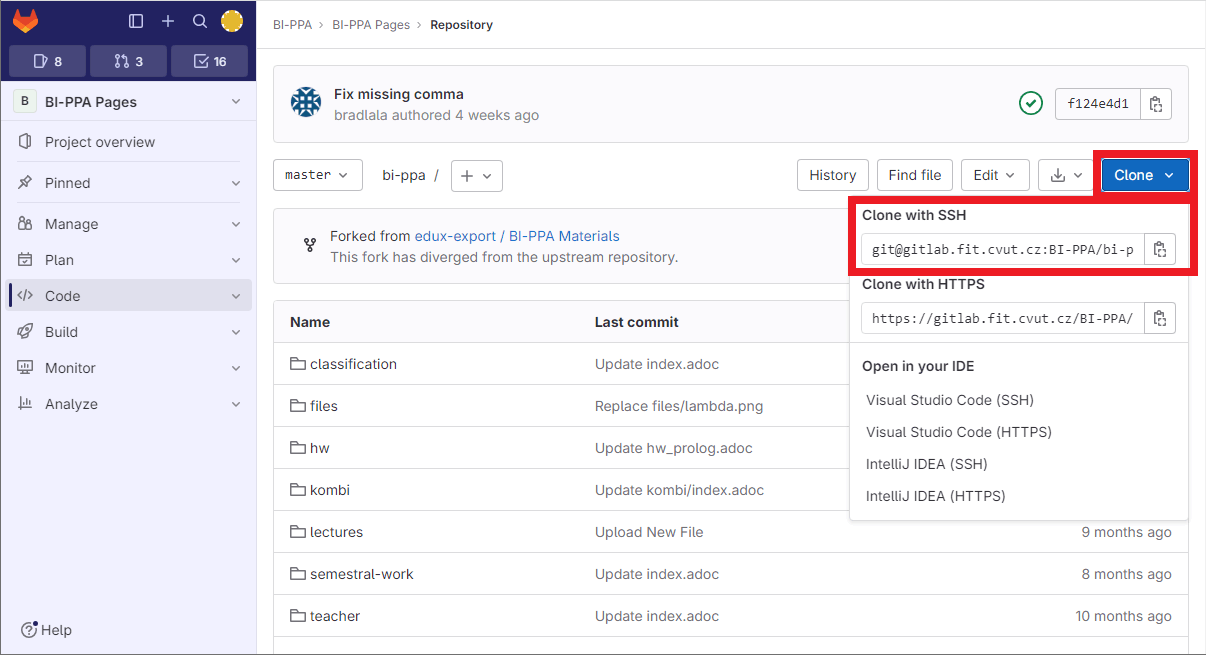
Figure 1. Project detail during cloning. Open a command prompt and run the following command in the desired directory.
$ git clone <url>Replace <url> with the address copied in the previous step.
Git Large File Storage (LFS)
When working with larger files, it is necessary to use the accompanying Git Large File Storage service (LFS).
Caution:
Git LFS can only be used when working with a repository locally. The GitLab web interface cannot be used to upload large files.
Installation
To use LFS, installation is required.
- Download the package from https://git-lfs.com/
Install it using the following command:
$ git lfs install- LFS installation has completed successfully.
Configuration
- Navigate to the desired repository.
Decide which files are large enough to be stored using LFS. To track a file with LFS, use the command
git lfs track <file_name>.Example for storing all .isofiles in LFS.$ git lfs track "*.iso"From this point onward, whenever you commit and push to the repository,
.isofiles will be uploaded to LFS.
- For example, using the standard https://en.wikipedia.org/wiki/Ssh-keygen tool. ↩
- Specifically
%USERPROFILE%/.ssh/↩ - For example, using https://www.puttygen.com/ ↩